Direct Inward Dialing: +1 408 916 9890
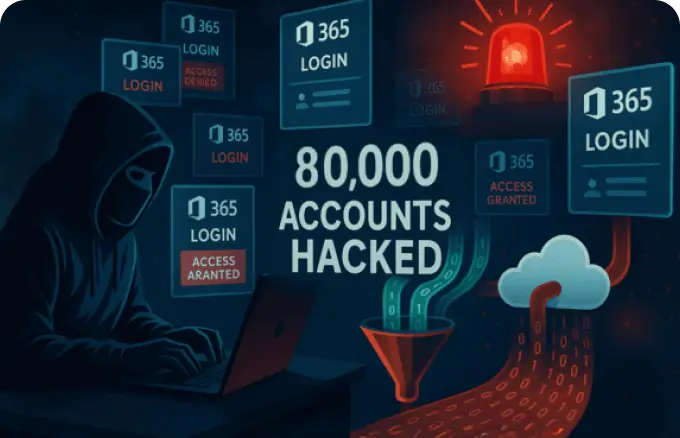
On June 11, 2025, cybersecurity researchers identified UNK_SneakyStrike, a password spray attack that’s already compromised over 80,000 Entra ID accounts across 100 global tenants. Tracing back to December 2024, the attack continues to operate under the radar.
If your organization uses Microsoft 365, it is crucial for you to understand how this threat moves and detect it before it reaches your Entra ID tenant. Keep reading to learn how you can safeguard against this threat efficiently.
The perpetrator behind UNK_SneakyStrike remains unknown. But investigators have found one clear trace: the consistent use of a single, open-source tool originally built for red teams — TeamFiltration.
While originally developed as a legitimate penetration testing utility, TeamFiltration has become a capable weapon in the wrong hands to collapse organizations. This open-source tool, designed to help assess cloud environment vulnerabilities, has now been used by attackers to exploit the same environments.
TeamFiltration excels in automating various attack vectors within Microsoft 365 environments, including account enumeration to find vulnerable users, password spraying to test common passwords across multiple accounts, data exfiltration to steal content from Microsoft 365 apps, and persistent back-doors to retain access even after detection.
Its open-source nature means it is freely accessible, making it easier for skilled attackers to adapt and deploy it however they see fit. And across every breached tenant observed so far, TeamFiltration has remained the common thread, pointing to an attack that is both repeatable and deliberate. But what does that attack actually look like once it begins?
The UNK_SneakyStrike attack relies on exploiting subtle misconfigurations and overlooked policy gaps within Microsoft 365 environments. Even with standard Microsoft 365 Conditional Access in place, your users are not fully protected since legacy authentications, lack of device compliance, exempting “break-glass” accounts, and long-lived refresh tokens are exceptions that can be used by the exploit to sneak in. What makes this attack especially dangerous is its ability to imitate normal user behavior, bypassing defenses that most teams rely on without raising suspicion. Here is a step-by-step breakdown of the attack flow.
The attacker begins by selecting a Microsoft 365 tenant and initiating reconnaissance to identify weak spots. Even with Conditional A ccess policies in place, vulnerabilities such as unmonitored applications, misconfigured IP ranges, non-compliant devices, or incomplete location-based restrictions often exist.
Using TeamFiltration, the attacker launches distributed password spray attempts from multiple AWS instances. This approach rotates requests across various AWS regions, masking the volume and origin of login attempts, thus bypassing standard anomaly detection.
Upon successful login into a single account, attackers extract a Family Refresh Token, a powerful access credential that grants session continuity across first party Microsoft 365 apps linked under the same family. This token allows seamless hopping between apps without repeated authentication.
With access to the tenant’s core applications, the attacker launches targeted data exfiltration to siphon files and information from multiple Microsoft 365 applications such as Microsoft Outlook, Microsoft Teams, SharePoint Online, and OneDrive for Business. What makes this step often overlooked is that TeamFiltration leverages legitimate Microsoft Graph and cloud APIs, meaning activities blend in perfectly with regular user behavior.
To mislead detection tools further, the attacker uses a decoy Microsoft 365 account (usually with a Microsoft 365 Business Basic license). This sacrificial account absorbs the brunt of risk-related activity, making it seem like just another business user rather than a hostile actor.
The final blow is the installation of a backdoor. Malicious files are uploaded to the victim’s OneDrive and then used to replace original files on synced devices. These files, often macro-enabled or malware-laced, reestablish attacker access if disrupted and can even trigger lateral movement across devices. These back doors can be used by the threat actor even after UNK_SneakyStrike is patched up.
Unlike opportunistic or random password spray attempts, the UNK_SneakyStrike attack follows a deliberate, methodical frequency that reveals the threat actor's strategic planning.
The first signs of UNK_SneakyStrike activity trace back to December 2024, where sporadic access attempts began appearing across a handful of tenants. The attack reached its peak in January 2025, with a recorded spike of 16,500 users targeted in a single day. This escalation marked the attack’s most aggressive phase. The attacks continue as of June 18, 2025.
The UNK_SneakyStrike attack operates in bursts of high-intensity activity, followed by extended periods of dormancy. On the day of the attempt, the attacker initiates a flurry of password spray attempts focused on a selected group of users. These bursts are high in volume but short in duration, designed to avoid prolonged detection windows in monitoring systems.
After a burst, the attack typically goes silent for four to five days, likely to minimize the risk of detection and to analyze the outcome of previous attempts. This spacing strategy helps reduce anomalies in sign-in logs that security teams might otherwise flag.
In smaller environments, the attacker often targets all users simultaneously, banking on the probability that some accounts might lack sufficient protection due to limited administrative oversight.
In larger organizations, the focus shifts to users with weaker Conditional Access configurations, often those excluded from stringent policies due to legacy roles, device non-compliance, or third-party integration needs.
Early detection is essential to mitigating the damage from UNK_SneakyStrike. Despite its stealthy approach, the attack leaves behind a set of subtle but identifiable traces across your Microsoft 365 environment. By actively monitoring for these indicators of compromise, administrators can spot suspicious activity before a full-scale breach occurs. Apart from the bursts of access attempts, there are other factors that differentiate this from your general user behaviors.
This attack used client IDs sourced from Secureworks’ Family of Client ID (FOCI) research. Although updated as recently as March 2025, and the threat actor is aware of these IDs being tracked, these might still prove useful. If any of these IDs appear in your tenant's activity logs, it's a strong indication that an intrusion attempt has occurred. Security tools such as ManageEngine M365 Manager Plus help you with tracking user activity tied to specific client IDs.
The attacker relies on this user agent string, which, has been linked to multiple attacks under the UNK_SneakyStrike.
Mozilla/5.0 (Windows NT 10.0; Win64; x64) AppleWebKit/537.36 (KHTML, like Gecko) Teams/1.3.00.30866 Chrome/80.0.3987.165 Electron/8.5.1 Safari/537.36
You can configure alerts in Azure Monitor or administrative tools such as M365 Manager Plus to notify you of suspicious activities using this agent.
As of June 18, 2025, several IP addresses have been linked to UNK_SneakyStrike activity. These are largely associated with AWS-hosted infrastructure used for attack distribution.
If you do not have any dependencies on AWS, you can block these IPs to your Conditional Access block list to prevent repeated exploitation attempts.
Research on the attack reveals that most sign-ins have been traced to AWS data centers, predominantly from these loc ations: 42% of the attacks emerged from the United States, 11% from Ireland, and 8% from Great Britain.
You can track login activities from these locations specifically and follow up on them as a precaution.
Responding to an advanced attack like UNK_SneakyStrike requires more than basic configuration—organizations must adopt proactive, layered defenses to neutralize its entry points and persistence mechanisms. Here are some of the measures you can take up to secure your Microsoft 365 tenant from this attack.
MFA remains one of the most effective defenses against password-based attacks. Ensure that MFA is enabled for all user accounts, especially those with elevated privileges or access to sensitive data. You can configure MFA for your users with Security Defaults, Per-User MFA, or using Conditional Access policies.
UNK_SneakyStrike capitalizes on loopholes in poorly configured or incomplete Conditional Access setups. To prevent this:
Audit your Conditional Access policies periodically to identify gaps, particularly around excluded users or unmanaged devices.
The known IP addresses used by the attack can be blocked at the Conditional Access level or via firewall configurations. This step reduces the likelihood of continued access from known bad actors.
Establish detection rules or alerts to identify any traffic that mimics the TeamFiltration user agent profile listed. This is rarely used in legitimate workflows and can serve as a reliable trigger for threat investigation.
Although Microsoft’s Azure Monitor can help with monitoring and alerts, it requires additional licensing and is complex to set up. Given the pace at which UNK_SneakyStrike operates, relying solely on this tool could slow down your incident response. What you need is a single Microsoft 365 administration solution that bundles all of this, and more, in a user-friendly and economical package. And that solution is ManageEngine M365 Manager Plus.
M365 Manager Plus is a comprehensive administration and security solution for Microsoft 365 used for reporting, managing, monitoring, auditing, and creating alerts for critical activities in your Microsoft 365 environments.
Here is how you can use M365 Manager Plus to identify and protect against the impacts of breaches like UNK_SneakyStrike:
M365 Manager Plus enables you to configure custom alert profiles based on known indicators of compromise, such as:
You can configure these alerts to be triggered if the same user fails their logins a certain number of times in a specified time period , or if logon attempts are made outside a specific time period.

These alerts help identify abnormal behaviors long before any real damage occurs, giving administrators a crucial window of time to evaluate and take action.
With M365 Manager Plus, you can apply MFA policies to multiple users at once. You can:

This makes enforcing MFA fast, centralized, and scalable across the entire organization.
If a breach is suspected or confirmed, you can secure your affected users in a smooth flow.

One of the biggest challenges during an incident is identifying misconfigured Conditional Access policies. M365 Manager Plus provides a consolidated dashboard where you can review all Conditional Access policies in one place and spot exceptions or overly permissive rules from a single screen as opposed to checking out one policy at a time.

Download the free, 30-day trial of M365 Manager Plus to see these features in action for yourself and explore the other features this tool has to offer. Contact us for a free, personalized demo on setting these features up to secure your Microsoft 365 environment.